iris
irisdocs

Documentation

Everything you need to get the most out of Iris.

TypeScriptJavaScriptGoPython

How it Works

From install to insights in four steps. Iris runs entirely locally — no backend, no AI, and no configuration required to get started.

1

Install & open a file

Install Iris from the VS Code Marketplace and open a supported file — the Iris sidebar populates instantly with no configuration required.

Iris in the VS Code Marketplace
2

Read the File tab

Open any JS, TS, Go, or Python file — the File tab shows the health score, cyclomatic complexity, function list, import count, and detected code smells.

Iris sidebar showing health score, complexity, functions, and smells
3

Run a workspace scan

Run Iris: Analyse Workspace from the command palette — the Problems tab and TODOs tab populate with aggregated findings across every file in the project.

Iris Problems tab and TODOs tab with workspace-wide findings
4

Upgrade to Pro

Unlock advanced metrics with a Pro licence — regional pricing, sign in with Google or GitHub, and Pro features activate instantly after payment.

Iris Pro pricing page and activation flow

Overview

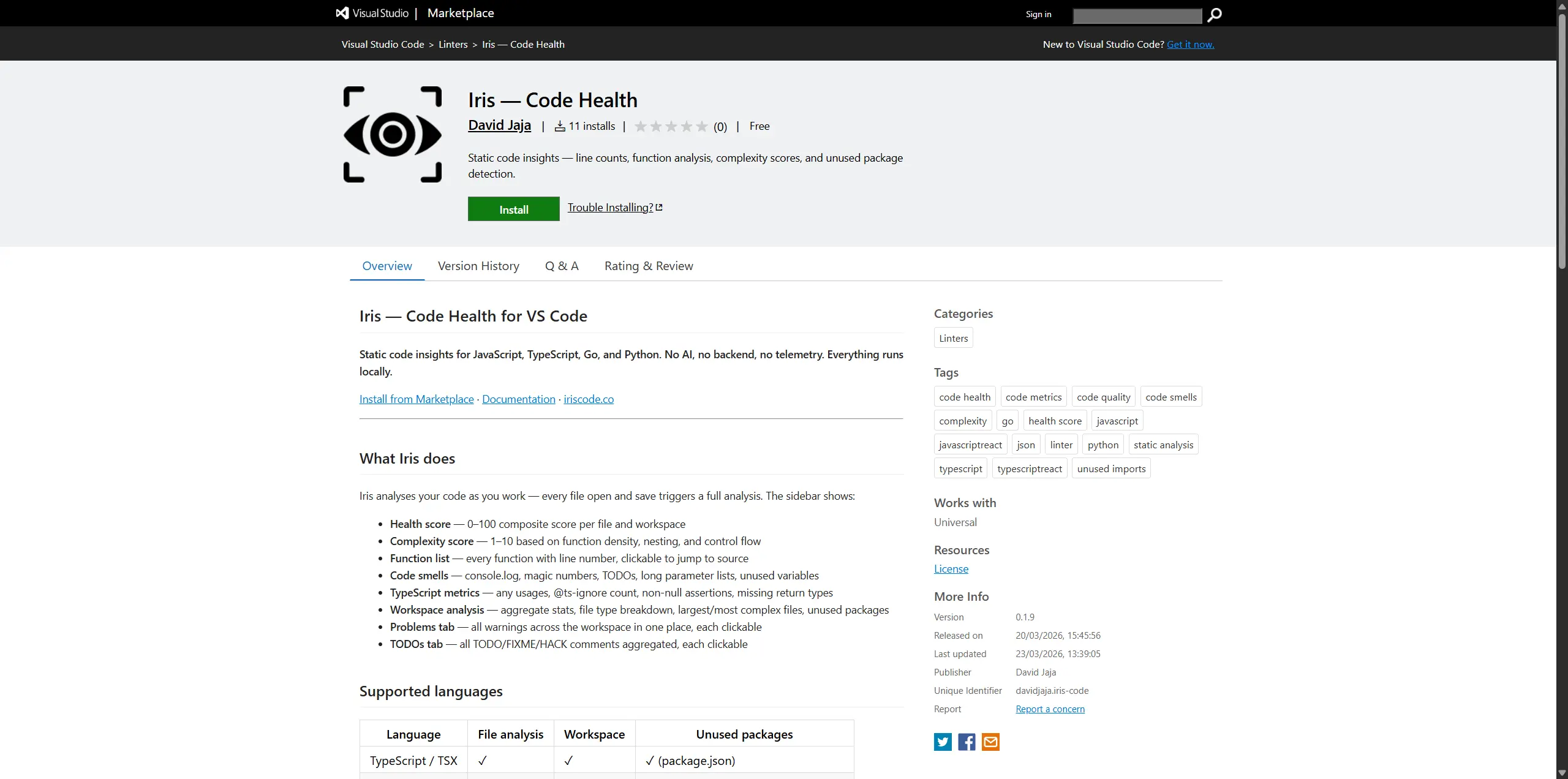
Iris is a VS Code extension for static code insights — health scores, complexity analysis, function detection, code smell detection, and TypeScript quality metrics. It supports JavaScript, TypeScript (JS/JSX/TS/TSX), Go, and Python. Everything runs locally — no backend, no AI, no telemetry.

  • Automatic analysis on every file open and save
  • Health score from 0 - 100 per file and workspace
  • Complexity scoring, function lists, import tracking
  • Code smell detection with clickable jump-to-line
  • Workspace and folder-level aggregated stats
  • Configurable thresholds via .irisconfig.json or VS Code settings

Installation

Install Iris from the VS Code Marketplace — it's free.

  1. 1Open VS Code and go to the Extensions panel (Ctrl+Shift+X)
  2. 2Search for Iris and click Install
  3. 3The Iris icon appears in the Activity Bar
  4. 4Open any JS, TS, Go, or Python file — the sidebar populates instantly

Quick Start

Once installed, Iris works with zero configuration. Here's what to expect:

  • Open any supported file — the File tab shows the health score, complexity, functions, and smells
  • Run Iris: Analyse Workspace from the command palette to scan your entire project
  • Right-click any folder in Explorer and choose Iris: Analyse This Folder for scoped analysis
  • Click any warning or finding in the sidebar to jump directly to that line
  • Add a .irisconfig.json at your project root to share thresholds across your team
Tip: Iris auto-refreshes the File tab on every save — no need to trigger analysis manually.
Features

File Analysis

Iris analyses every supported file automatically as you open or save it. The File tab shows:

  • Health score — 0–100 composite score penalising warnings, deep nesting, long functions, and debug prints
  • Trend delta — ↑/↓ change vs the previous snapshot, shown next to the health score after the first workspace scan
  • Language badge — Go / TypeScript / JavaScript / Python badge in the file header
  • Line counts — total lines, blank lines, code lines
  • Complexity score — 1–10 score based on function density, nesting depth, control flow, and import count
  • Function list — all detected functions with line numbers, each clickable to jump to source
  • Import tags — third-party packages detected via import statements
  • Unused imports — named/default/namespace bindings that are imported but never referenced (TypeScript/JavaScript only)
  • Test file indicator — flags whether a corresponding test file exists (configurable via testConvention in .irisconfig.json)
Note: Unused import detection is TypeScript/JavaScript-only. Go and Python handle this at the compiler/runtime level.

TypeScript Metrics

Shown only for TS/JS files; hidden automatically for Go and Python.

MetricWhat it tracks
any usagesCounts explicit : any / as any. Each occurrence is clickable.
@ts-ignoreCount of TypeScript suppressions
Non-null assertionsCount of ! usages
Missing return typesExported functions without an explicit return type annotation

Python Support

Full Python analysis with language-aware routing:

  • Functions — all def declarations detected (top-level and class methods), with line numbers
  • Third-party importsimport pkg and from pkg import ...; stdlib modules are excluded automatically
  • print() calls — flagged in Code Lens and Code Smells
  • No public functions warning — flags if all functions start with _ (private by convention)
  • Unused Python packages — workspace scan reads requirements.txt and pyproject.toml and flags declared packages never imported across .py files
  • __pycache__, .venv, venv — skipped automatically during scans
  • Parameter listsself and cls are excluded from the parameter count

Go Support

Full Go analysis with language-aware routing:

  • Functions — both top-level func Name( and methods func (r *T) Name( detected
  • Third-party imports — packages with a dot in the root path segment (e.g. golang.org/x/..., pkg.example.com/...)
  • Debug printsfmt.Print*, log.Print*, log.Fatal*, log.Panic* flagged in Code Lens and Code Smells
  • No-exports warning — flags if no capitalised (exported) function names are found
  • Unused Go modules — workspace scan reads go.mod and flags declared modules never imported across .go files
  • vendor/ directory — skipped automatically during workspace/folder scans

Code Smells

Iris detects several code smell patterns across all supported languages. Every finding is clickable to jump to the line.

SmellDetected inToggle setting
Debug prints — console.log/warn/errorJavaScript / TypeScriptenableConsoleLogWarnings
Debug prints — fmt.Print* / log.Print* / log.Fatal* / log.Panic*GoenableConsoleLogWarnings
Debug prints — print()PythonenableConsoleLogWarnings
Magic numbers — raw numeric literals (excluding 0 and 1) used inline without a named bindingAll supported languagesenableMagicNumberDetection
TODOs / FIXMEs / HACKs — from // comments (JS/TS, Go) and # comments (Python)All supported languagesenableTodoDetection
Long parameter lists — functions with too many parametersAll supported languagesenableLongParamDetection
Unused variables — declared but never referenced elsewhere in the fileAll supported languagesenableUnusedDetection
Unused functions — defined but never called within the file and not exportedAll supported languagesenableUnusedDetection
Tip: Disabling a toggle hides both the stat counter and the detail section from the sidebar entirely — useful for reducing visual clutter.

Warnings

Five warning types, each with configurable severity:

TypeDefault severityTriggers at
file-too-longerror / warning> threshold / > ⅔ threshold
function-too-longerror / warning> 2× threshold / > threshold
too-many-functionswarning> maxFunctionsPerFile
too-many-importswarning> maxImportsPerFile
no-exportsinfono exported identifier found
Tip: Override severity per warning type using severityOverrides in .irisconfig.json.

Workspace Analysis

Run Iris: Analyse Workspace from the command palette or the Scan Workspace button in the Workspace tab to get:

  • Total files, directories, lines, functions
  • File type breakdown with an interactive pie chart
  • Largest files (top 5) and most complex files (top 5)
  • Unused packages declared in package.json, go.mod, requirements.txt, or pyproject.toml but never imported
  • All warnings aggregated into a Problems tab with error count badge
  • All TODOs aggregated into a TODOs tab, grouped by type
  • Interactive file tree grouped by directory
  • Trend summary — overall health score delta since the last snapshot, top 3 improved files, and top 3 regressed files
  • Results are cached — navigate away and come back without re-scanning

Folder Analysis

Right-click any folder in Explorer and choose Iris: Analyse This Folder, or click Scan Current Folder in the Folder tab to analyse the folder of the currently open file.

Results appear in the dedicated Folder tab, which auto-activates on scan. The Folder tab shows the same stats, pie chart, ranked files, and tree as the Workspace tab, plus Rescan and Clear buttons.

Problems & TODOs

The Issues and TODOs tabs populate from the most recent folder or workspace scan. Each row shows severity (colour-coded dot), filename, line number, and message — all clickable to jump to source.

  • Issues tab badge shows the error count (red) or total issue count
  • TODOs tab badge shows the total count of TODO/FIXME/HACK items found
  • Findings persist until you run a new scan or click Clear

Code Lens

Inline hints appear above functions that exceed the length threshold. Language-aware:

  • JS/TS: hints next to every @ts-ignore and console.log
  • Go: hints next to fmt.* / log.* debug print calls
  • Python: hints next to print() calls

Disable Code Lens via VS Code setting: iris.enableCodeLens: false

Status Bar

Shows health score, line count, and function count for the active file. Turns warning/error colour based on health score and complexity threshold. Works for all supported languages.

Disable via VS Code setting: iris.enableStatusBar: false

Detached Panel

Pop Iris out of the narrow sidebar and into a full editor column beside your code. The panel shows the same analysis as the sidebar but with more space for the two-column layout.

How to open

Click the pop-out icon in the Iris sidebar title bar, or run Iris: Open in Panel from the command palette (Ctrl+Shift+P). Close it the same way to restore the sidebar.

What the panel does

  • Auto-refreshes when you switch files or save — always showing the current file
  • Switches to a two-column layout when wide enough (≥700px): file stats on the left, findings on the right; workspace ranked lists go side-by-side
  • While the panel is open, the Iris sidebar shows a placeholder so data is never duplicated
  • Supports jump-to-line — click any finding or function to jump to that exact line in the editor
Note: The detached panel is available on all plans — no Pro subscription required.

Trend Tracking

Iris saves a daily health-score snapshot for each file after a workspace scan. Over time these snapshots show whether your codebase is improving or regressing.

Where trends appear

  • File analysis — a ↑/↓ delta is shown next to the health score, comparing the current score against the previous snapshot
  • Workspace analysis — after each scan you see the overall score delta, a list of top 3 improved files, and a list of top 3 regressed files

How snapshots work

  • One snapshot is saved per day — running multiple scans on the same day updates the existing snapshot rather than creating a new one
  • Snapshots are stored in .iris-snapshots/ at your workspace root
  • .iris-snapshots/ is automatically added to your .gitignore — snapshots are local to each developer
  • To reset your history, delete the .iris-snapshots/ folder
Tip: Free plan stores 2 rolling snapshots (~2 days of history). Pro stores unlimited snapshots so you can track trends week over week and month over month. Upgrade at iriscode.co/pricing.

Export Report

Save your current analysis as a standalone dark-themed HTML file you can share with your team, attach to a PR, or keep as an archive.

How to export

  1. 1.Run any analysis — file, workspace, or folder
  2. 2.Open the command palette and run Iris: Export Scan Report as HTML
  3. 3.Choose a save location — defaults to iris-report.html in your workspace root
  4. 4.Click Open in Browser in the prompt to preview the report immediately

What's included

  • File analysis — health score, warnings table, and functions table for the currently analysed file
  • Workspace analysis — summary stats grid, top files by health score, and file type breakdown
  • Folder analysis — scoped results for the selected folder
  • Only sections you have actually run are included in the report
Note: The report is a static snapshot. Re-run your analysis and re-export to get updated data. Export is available on all plans — no Pro required.

The default filename is iris-report.html. The file is self-contained — no external assets or internet connection needed to open it.

Configuration

VS Code Settings

Open settings with Ctrl+, and search "Iris" to configure:

SettingDefaultDescription
iris.functionLengthThreshold40Lines before a function is flagged
iris.fileLengthThreshold300Lines before a file is flagged
iris.maxFunctionsPerFile10Max functions before flagging
iris.maxImportsPerFile8Max third-party imports before flagging
iris.maxParameterCount5Max parameters before flagging a function
iris.complexityThreshold7Complexity score that triggers status bar warning
iris.enableConsoleLogWarningstrueFlag console.log / print() / fmt.Print* statements
iris.enableMagicNumberDetectiontrueFlag raw numeric literals used without a named binding
iris.enableTodoDetectiontrueFlag TODO / FIXME / HACK comments
iris.enableLongParamDetectiontrueFlag functions with too many parameters
iris.enableUnusedDetectiontrueFlag unused variables and functions
iris.enableMissingReturnTypeWarningstrueFlag exported functions missing return types (TS/JS only)
iris.enableCodeLenstrueShow inline Code Lens hints
iris.enableStatusBartrueShow Iris item in status bar
iris.severityOverrides{}Override severity per warning type
iris.ignoreFiles["**/*.test.ts", ...]Glob patterns for files to skip in workspace analysis
iris.ignoreFunctions[]Function names Iris should never flag

.irisconfig.json

Drop a .irisconfig.json at your project root and commit it. Every developer on the team runs Iris with the same thresholds — no per-machine drift.

Priority order: .irisconfig.json → VS Code settings → defaults

.irisconfig.json
{
  "functionLengthThreshold": 40,
  "fileLengthThreshold": 300,
  "maxFunctionsPerFile": 10,
  "maxImportsPerFile": 8,
  "maxParameterCount": 5,
  "complexityThreshold": 7,
  "enableConsoleLogWarnings": true,
  "enableMagicNumberDetection": true,
  "enableTodoDetection": true,
  "enableLongParamDetection": true,
  "enableUnusedDetection": true,
  "enableMissingReturnTypeWarnings": true,
  "enableCodeLens": true,
  "enableStatusBar": true,
  "ignoreFiles": [
    "**/*.test.ts",
    "**/*.spec.ts",
    "**/generated/**"
  ],
  "ignoreFunctions": [
    "main",
    "handler"
  ],
  "testConvention": "colocated",
  "sidebarFontSize": 14,
  "severityOverrides": {
    "file-too-long": "warning",
    "function-too-long": "warning",
    "too-many-functions": "warning",
    "too-many-imports": "warning",
    "no-exports": "warning"
  }
}

Only include the keys you want to override — anything omitted falls back to VS Code settings, then defaults.

testConvention — controls where Iris looks for test files alongside the analysed file. "colocated" (default) checks for foo.test.ts / foo.spec.ts next to the source file. "dedicated" looks in __tests__/foo.test.ts. "both" checks all locations.

sidebarFontSize — base font size in pixels (10–20, default 14) for the Iris sidebar and detached panel.

Severity Overrides

Override the severity of any warning type on a per-project basis:

Warning keyValid severities
file-too-longerror · warning · info
function-too-longerror · warning · info
too-many-functionserror · warning · info
too-many-importserror · warning · info
no-exportserror · warning · info
Reference

Commands

All commands are available via the command palette (Ctrl+Shift+P):

CommandDescription
Iris: Analyse Current FileManually re-analyse the active file
Iris: Analyse WorkspaceAnalyse all JS/TS/Go/Python files in the workspace
Iris: Analyse This FileRight-click a file in Explorer to analyse it
Iris: Analyse This FolderRight-click a folder in Explorer to analyse it
Iris: Analyse Current FolderAnalyse the folder of the currently open file
Iris: Open in PanelPop the sidebar out into a full editor panel beside your code
Iris: Export Scan Report as HTMLSave the current analysis as a standalone HTML report
Iris: Show Welcome PageOpen the Getting Started welcome page

Context Menus

Iris adds entries to the right-click menu in two places:

Explorer (file tree)

  • Right-click a JS/TS/Go/Python file → Iris: Analyse This File
  • Right-click a folder → Iris: Analyse This Folder
  • Right-click anywhere → Iris: Analyse Workspace

Editor (inside a file)

  • Iris: Analyse Current File
  • Iris: Analyse Current Folder
  • Iris: Analyse Workspace

Scoring & Metrics

Health score

Per-file composite score from 0 to 100. Starts at 100 — deductions are applied based on findings. Floor is 0, never negative. Fully deterministic: same code always produces the same score.

FindingDeduction
Error-level warning−5 each
Warning-level warning−3 each
any usage−2 each
@ts-ignore−3 each
console.log−1 each
Deep nesting (per function)−2 each
Long parameter list (per function)−1 each
Unused variable−1 each
Unused function−2 each
Note: @ts-ignore carries a heavier penalty than console.log because it is an active decision to suppress the type system. Unused functions carry a heavier penalty than unused variables because a dead function is a maintenance trap — someone will eventually spend time tracing it and find it does nothing.
Note: Error-level warnings cost more than warning-level warnings, which cost more than info-level findings — so a file with one long function is flagged but not cratered.

Complexity score

Separate 1–10 scale that answers a different question from health: not “is this code problematic?” but “how hard is this code to reason about?” Score starts at 1 and caps at 10. Each factor has a cap on its contribution — no single factor can max out the score alone.

FactorWhat it measures
Function densityNumber of functions relative to file size. Reflects how much is packed into one place.
Max indentation depthProxy for nesting complexity. Deeply indented code usually means deeply nested logic.
Control flow countEvery if, for, while, switch, catch, and ternary is a decision point that multiplies paths through the code.
Third-party import volumeA file pulling in many external dependencies tends to be doing many things.

Workspace health score

Average of all per-file health scores across the scanned project. One very unhealthy file will pull the average down but won't dominate the score unfairly.

Language differences

Warning: TypeScript-specific deductions — any usage, @ts-ignore, non-null assertions, missing return types — only apply to JS/TS files and are automatically zeroed out for Go and Python. Health scores are not directly comparable across languages: a Go file and a TypeScript file with identical structure may score differently.

Configurable thresholds

The thresholds that feed into the health score — function length, file length, max functions per file, max imports per file, max parameter count — are all configurable via VS Code settings or .irisconfig.json. Two projects can produce different health scores for the same file if their thresholds differ.

Iris Pro

Iris Pro

Iris is free to install and use for file analysis. Pro unlocks workspace and folder-level features.

What's included in Pro

  • Workspace analysis — scan your entire project at once
  • Folder analysis — scoped scans for any directory
  • Problems tab — all warnings aggregated with error count badge
  • TODOs tab — all TODO/FIXME/HACK items aggregated across your project
  • Clickable jump-to-line on all findings
  • .irisconfig.json team config support
  • Unlimited trend history — track health score changes week over week, month over month

How to upgrade

Go to iriscode.co/pricing and click Get Pro. Pricing is adjusted for your region automatically.

How sign-in works

  1. 1.Run Iris: Sign In from the VS Code command palette
  2. 2.Your browser opens and you sign in with Google or GitHub
  3. 3.You're redirected back to VS Code automatically — no copy-pasting needed
  4. 4.Pro features unlock instantly
Tip: The extension never stores your password or any sensitive credentials — only a license key in VS Code's encrypted secret storage.

Managing your subscription

Visit iriscode.co/account/billing to:

  • View your current plan and renewal date
  • Cancel or reactivate your subscription
  • Update your payment method if a card expires

If you cancel, you keep Pro access until the end of your current billing period.

What happens if payment fails

Paystack retries automatically over a few days. Your Pro access stays active during retries. If all retries fail, your subscription is cancelled and you revert to the free plan. You'll receive an email if this happens.